
Invite your students
Share a link or show a QR code. A student confirms, and you are connected.
Get your link
Section titled “Get your link”- Send
/teachers. - Tap I teach: invite students the first time, or ➕ Invite students once you have students.
- The bot shows your personal link. 📤 Share sends it to a chat. 🔳 QR code makes a picture you can show on your phone or print for the shala wall.
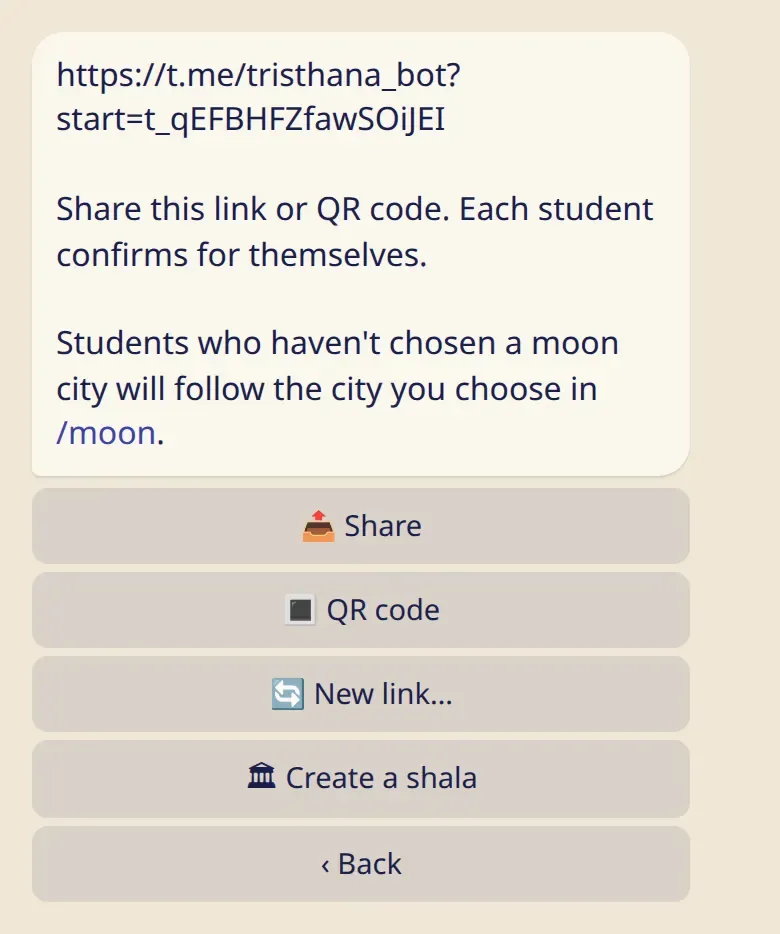
In the app the same link is under ⚙️ Settings → 👥 Teachers and students.
There is no teacher account to apply for. If you teach, you share your link, and that’s all.
What your student does
Section titled “What your student does”Each student opens the link and confirms for themselves. Before they confirm, the bot shows them exactly what you would see. You can’t add anyone yourself.
- When a student confirms, you get a message without a sound, and they appear under 👥 My students.
- If they tap Not now, you aren’t told.
If your link got out
Section titled “If your link got out”Tap 🔄 New link…. The old link and QR code stop working. People already on your list stay.
Remove a student
Section titled “Remove a student”Tap the student’s name in your list, then Remove…. Nobody gets a message.
Good to know
Section titled “Good to know”- One link works for all your students, and it doesn’t expire.
- You can have up to 500 students.
- You can be a teacher and a student in the same account, with your own teachers on the same screen.
- Students who haven’t chosen a moon city follow the one you choose: see Moon days your students follow.