
Classes and the week
Add Mysore, Led and other classes once, and everyone sees the week in their own time zone.
Add a class
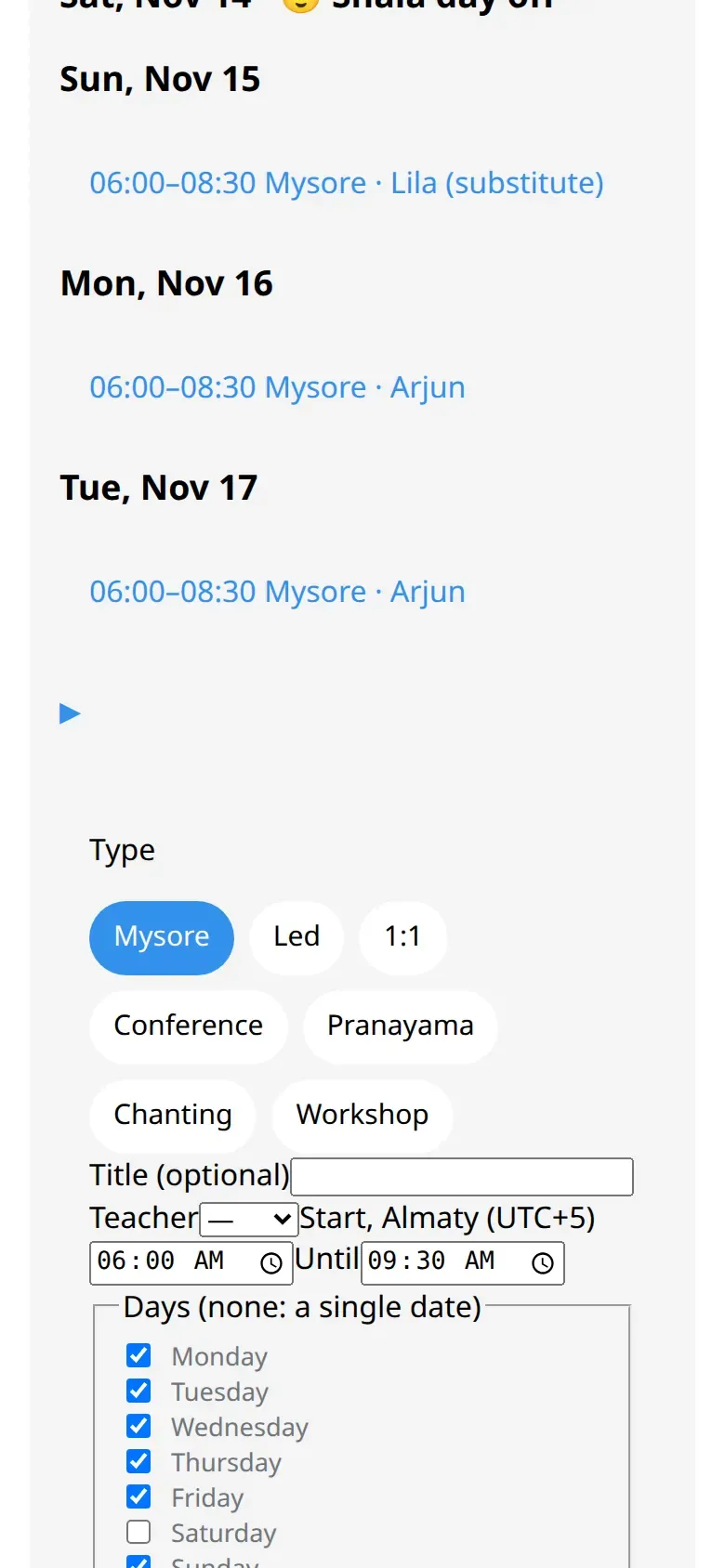
Section titled “Add a class”- In the app, open the shala and tap ➕ Add a class.
- Choose the Type: Mysore, Led, 1:1, Conference, Pranayama, Chanting or Workshop.
- Set the teacher, the start and end in the shala’s time, and the days of the week. A class can repeat every week or every 2 to 4 weeks. With no days ticked it happens once, on the first date.
- Tap Save the class.
How people see it
Section titled “How people see it”- Everyone in the shala sees the week in their own time zone, with the zone’s name. If they are in another zone, they see the shala’s time too.
- 1:1 classes are shown to the team only.
- An online class is marked 🌐, and you can set its time by another city.
- You set times by the clock in the shala’s city, so a 06:00 class stays at 06:00 when the clocks change.
Change or delete a class
Section titled “Change or delete a class”Tap a class in the schedule.
- You can change it for all dates, or from a date you choose. Earlier dates stay as they were.
- 🗑 Delete this class (all dates)… removes it from every date.
For a single date, see Closures, swaps and substitutes.
The classes you teach
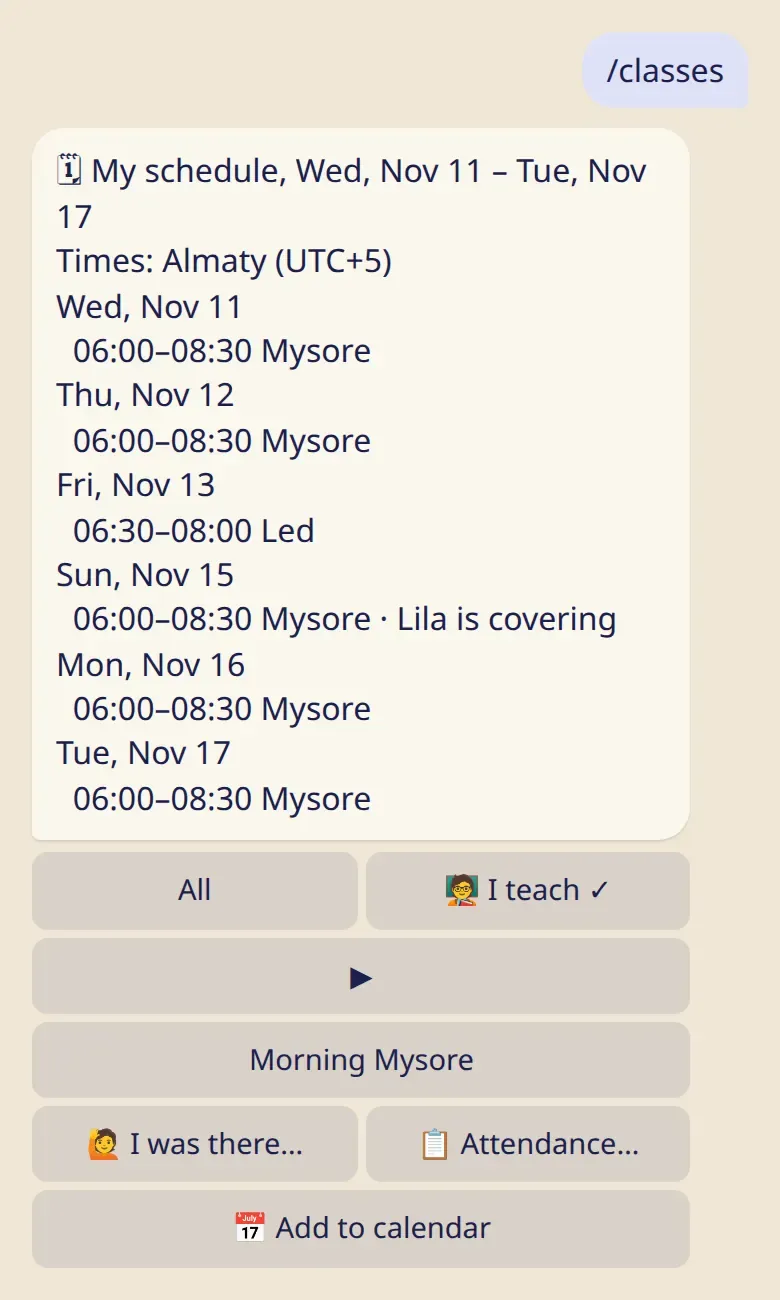
Section titled “The classes you teach”/classes shows your own week across all your shalas, including a class you are covering for someone.
The day off and moon days
Section titled “The day off and moon days”The owner or a manager sets these under ✏️ Edit the shala:
- The day off, one or two days. They show as 😌 Shala day off in the week.
- Moon days: The shala is closed, Pranayama, chanting and talks only or Classes as usual. With the first choice, classes on a moon day show as cancelled by themselves.
Good to know
Section titled “Good to know”- The owner, managers, teachers and the front desk can change the schedule. Assistants can’t.
- Nobody gets a message when the schedule changes. If it matters, send an announcement.
- A shala can have up to 40 classes at a time.